

Documentation Index
Fetch the complete documentation index at: https://docs.lindy.ai/llms.txt
Use this file to discover all available pages before exploring further.
You can use the memo generation template to get started.
Quick Overview
Stop spending hours compiling board updates. Your agent will:- Connect to your company data folder in Google Drive
- Process all PDFs and Google Sheets automatically
- Extract key information from financial statements, KPIs, and reports
- Generate a comprehensive memo with executive-ready narrative
- Deliver the polished memo to chat and email
- Attach an AI agent for follow-up questions about the data
Setting Up Your Memo Generator
Step 1: Simple Start Trigger
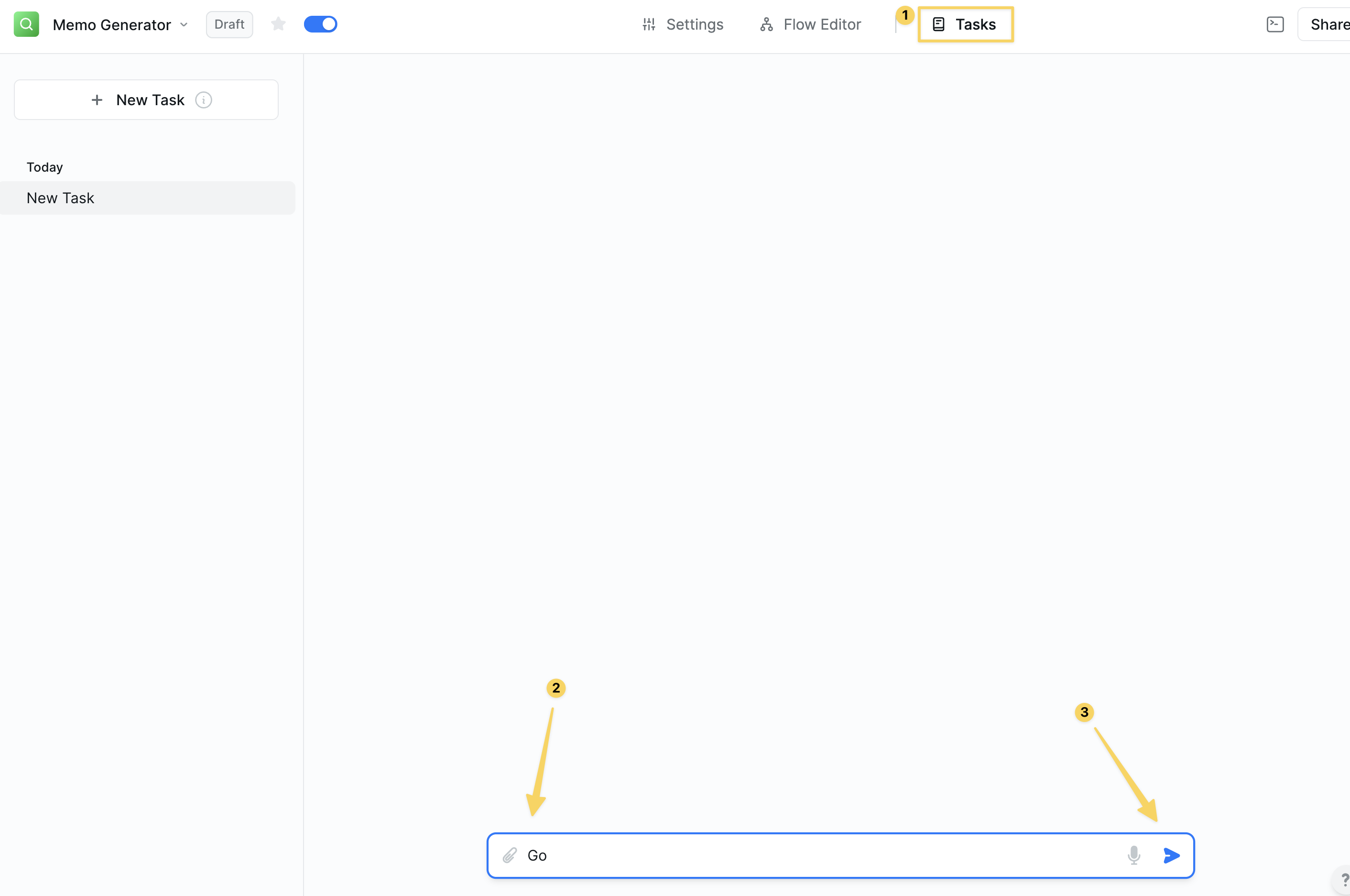
Chat Message Received trigger for simple activation:
Example messages:
- “Go”
- “Generate memo”
- “Run board update”
Step 2: Connect to Company Data Folder
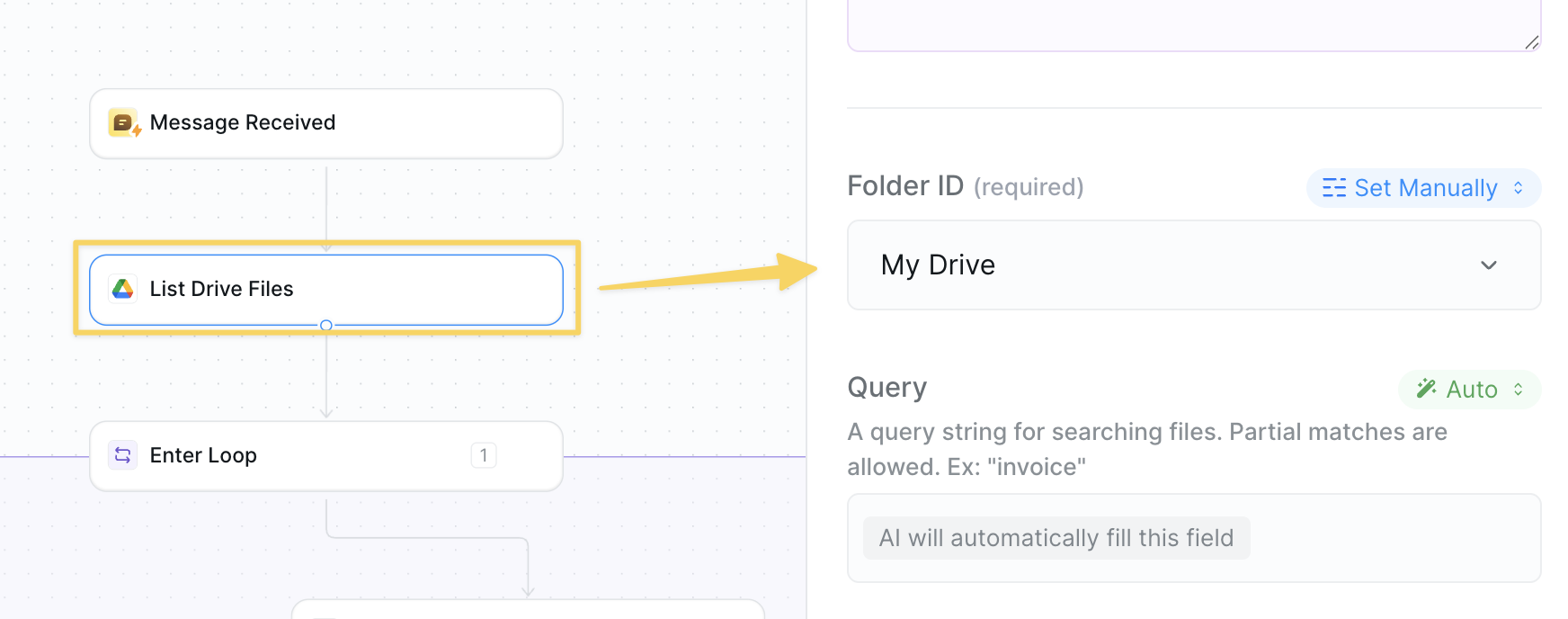
Google Drive – List Files action:
- Folder: Connect to your company’s main data folder in Google Drive
- Include: All file types (we’ll filter in the next step)
- This folder should contain all financial statements, reports, and company documents
Step 3: Enter File Processing Loop
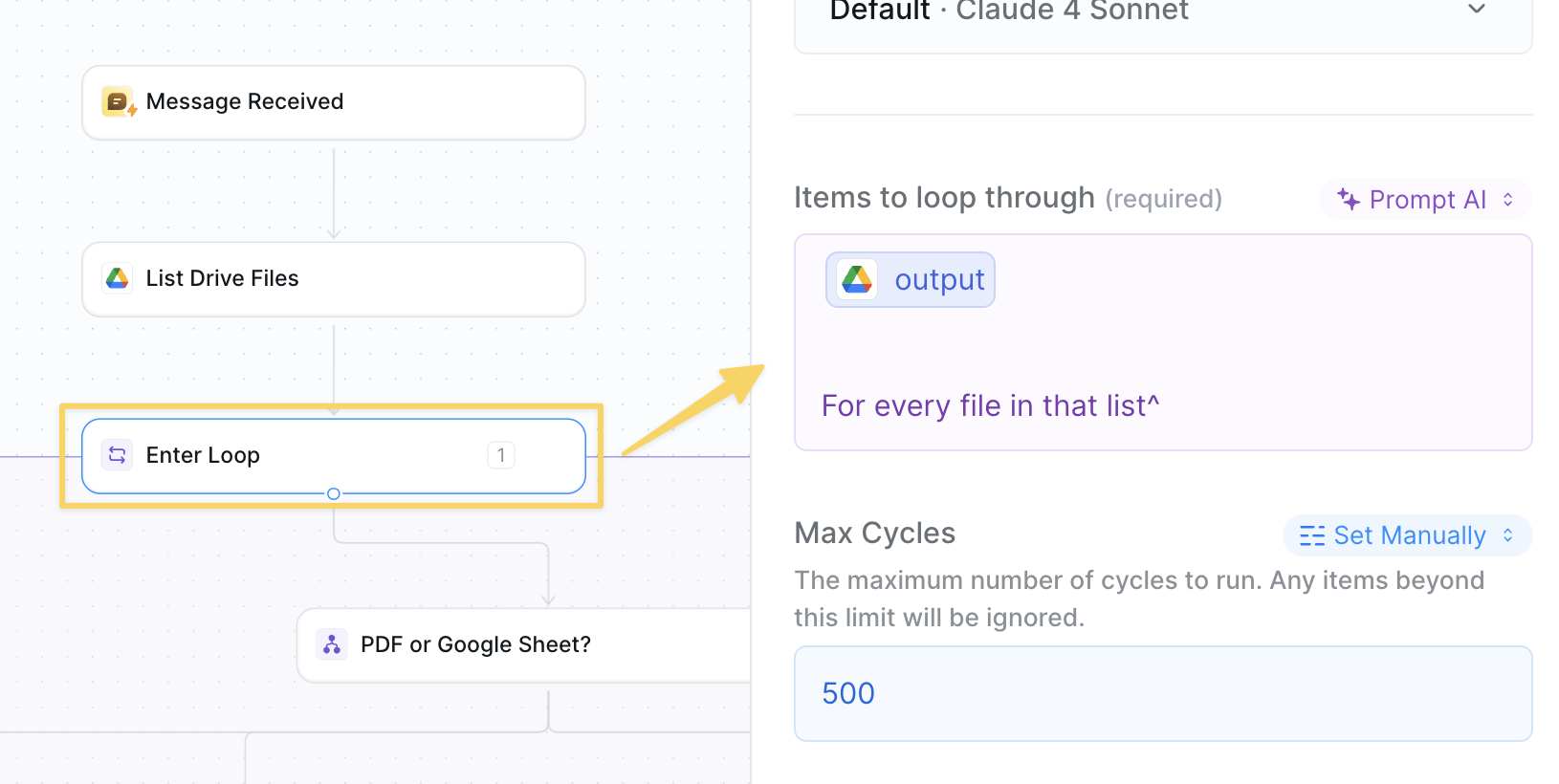
Enter Loop using the files from Step 2:
- Input: The list of files from your Google Drive folder
- This will process each file individually to extract relevant data
- We’ll handle different file types in the next step
Step 4: Determine File Type
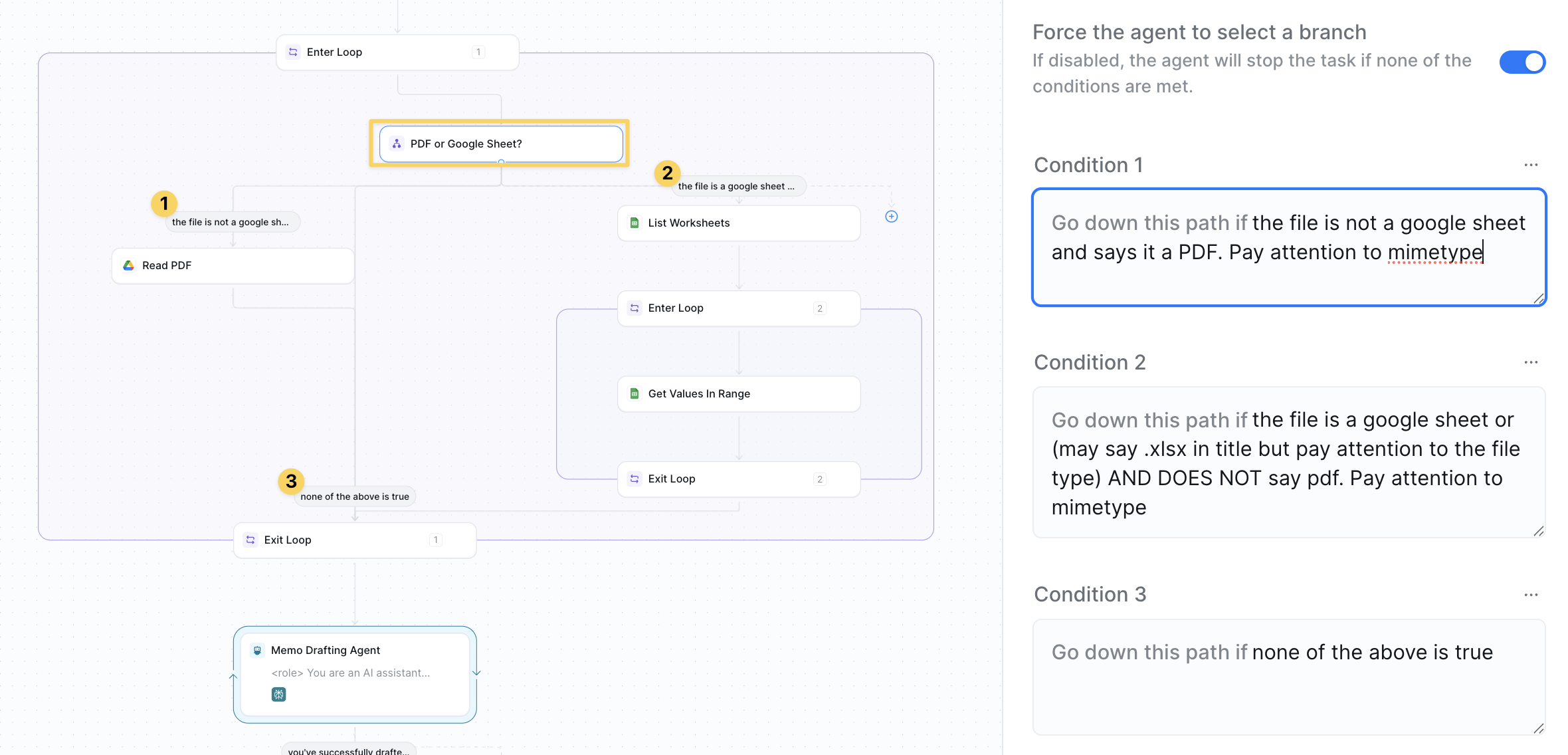
Conditions to route files based on their type. This workflow only processes PDFs and Google Sheets:
Path 1: If PDF
- Add
Google Drive – Download File - Then
File – Read PDFto extract all text content
- Add
Google Sheets – List Worksheets - Enter loop for each worksheet
- Use
Google Sheets – Get All Valuesfor each sheet
- Go directly to
Exit Loop(skip unsupported file types)
Step 5: Exit Loop and Add Context

Exit Loop action and use Add Context to compile all extracted data:
- Include all PDF text content and spreadsheet data
- Preserve file names and document structure
- This transfers all company data outside the loop for analysis
Step 6: Generate the Memo
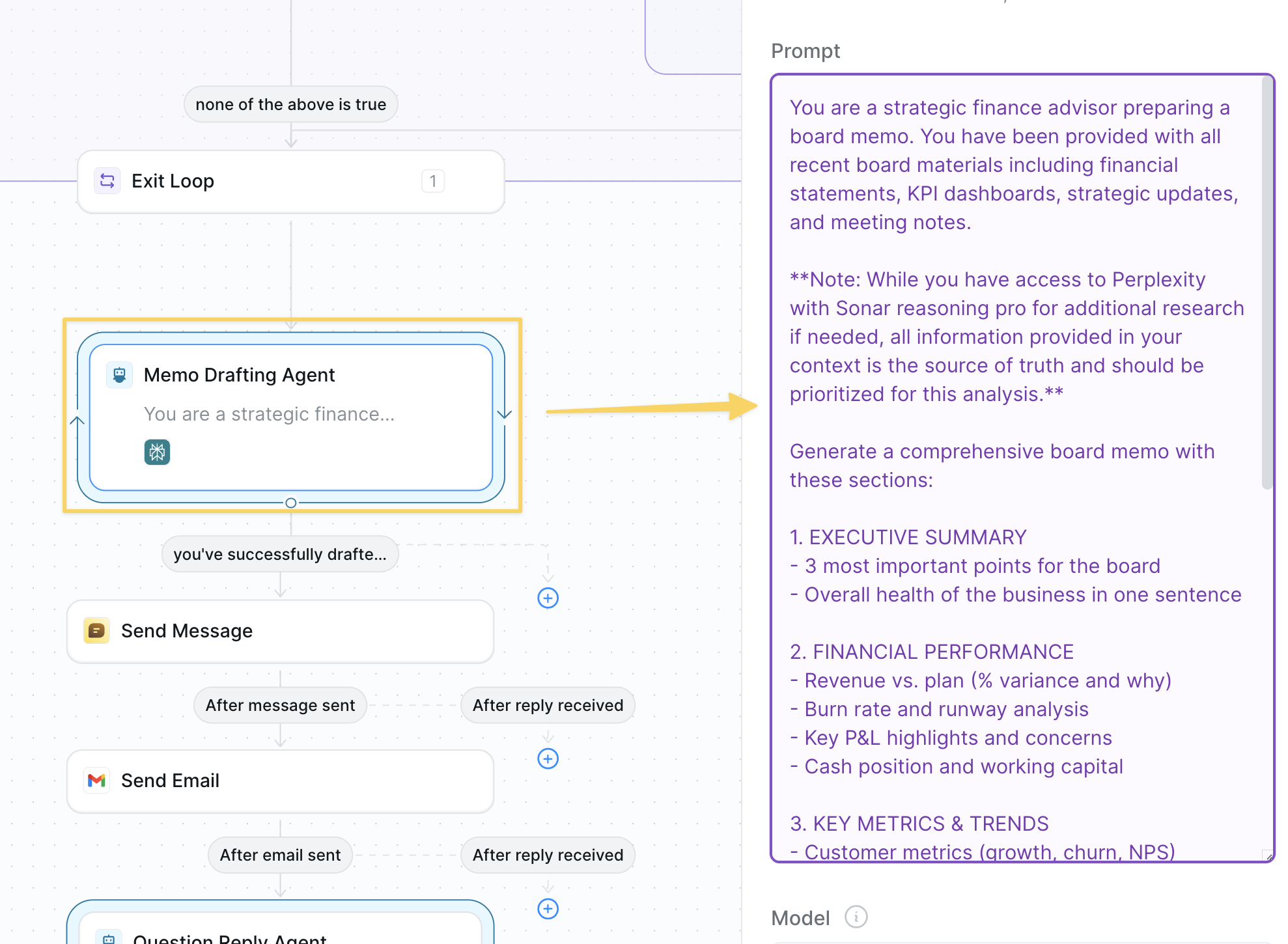
AI Agent – Memo Generator with this prompt:
Step 6: Send to Chat and Email
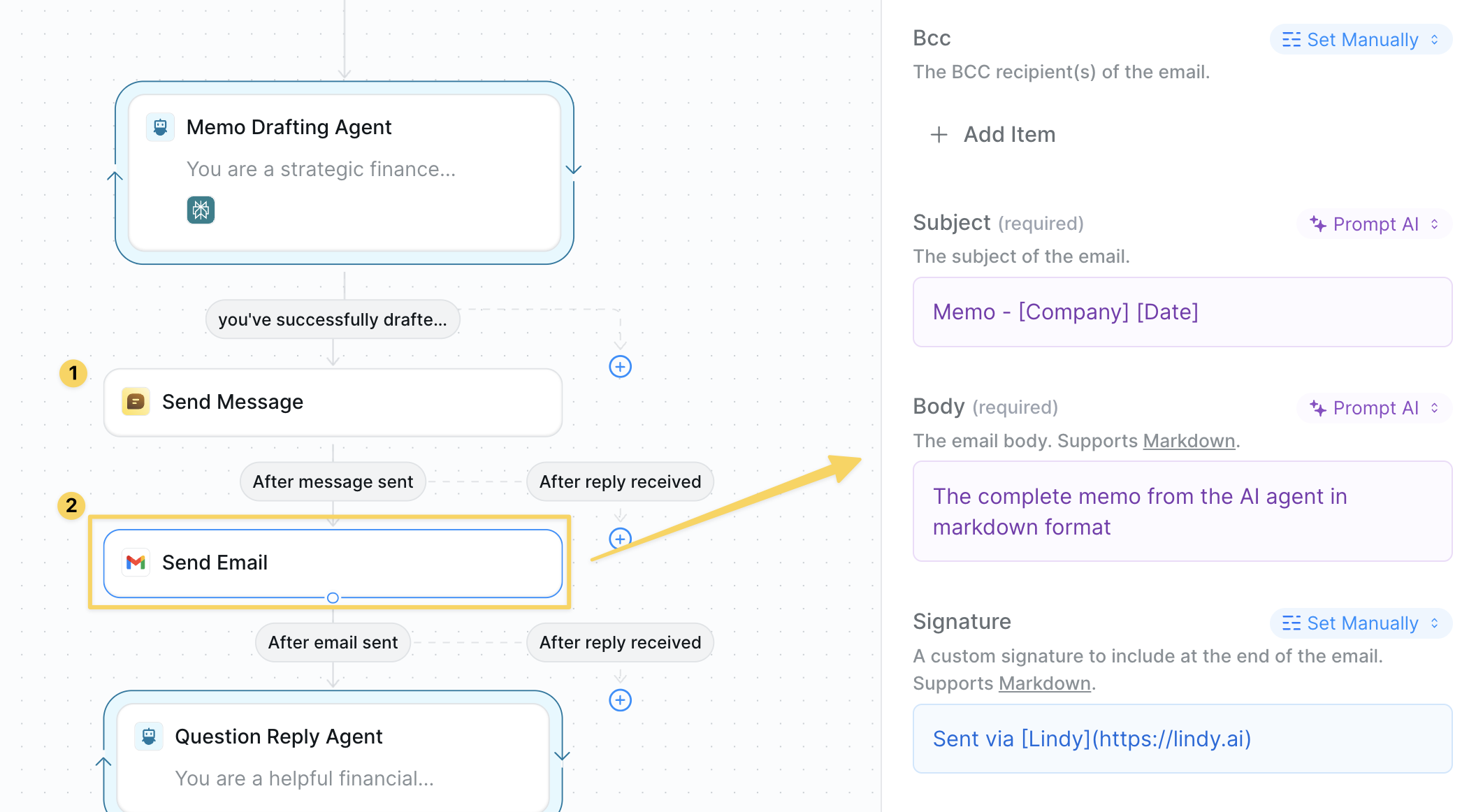
- Use
Chat – Send Messageto deliver the memo in the chat interface - Include the full memo content for immediate review
- Use
Gmail – Send Emailwith the memo content - Subject: “Memo - [Company] [Date]”
- Body: The complete memo from the AI agent in markdown format
Step 7: Attach AI Agent for Follow-up Questions
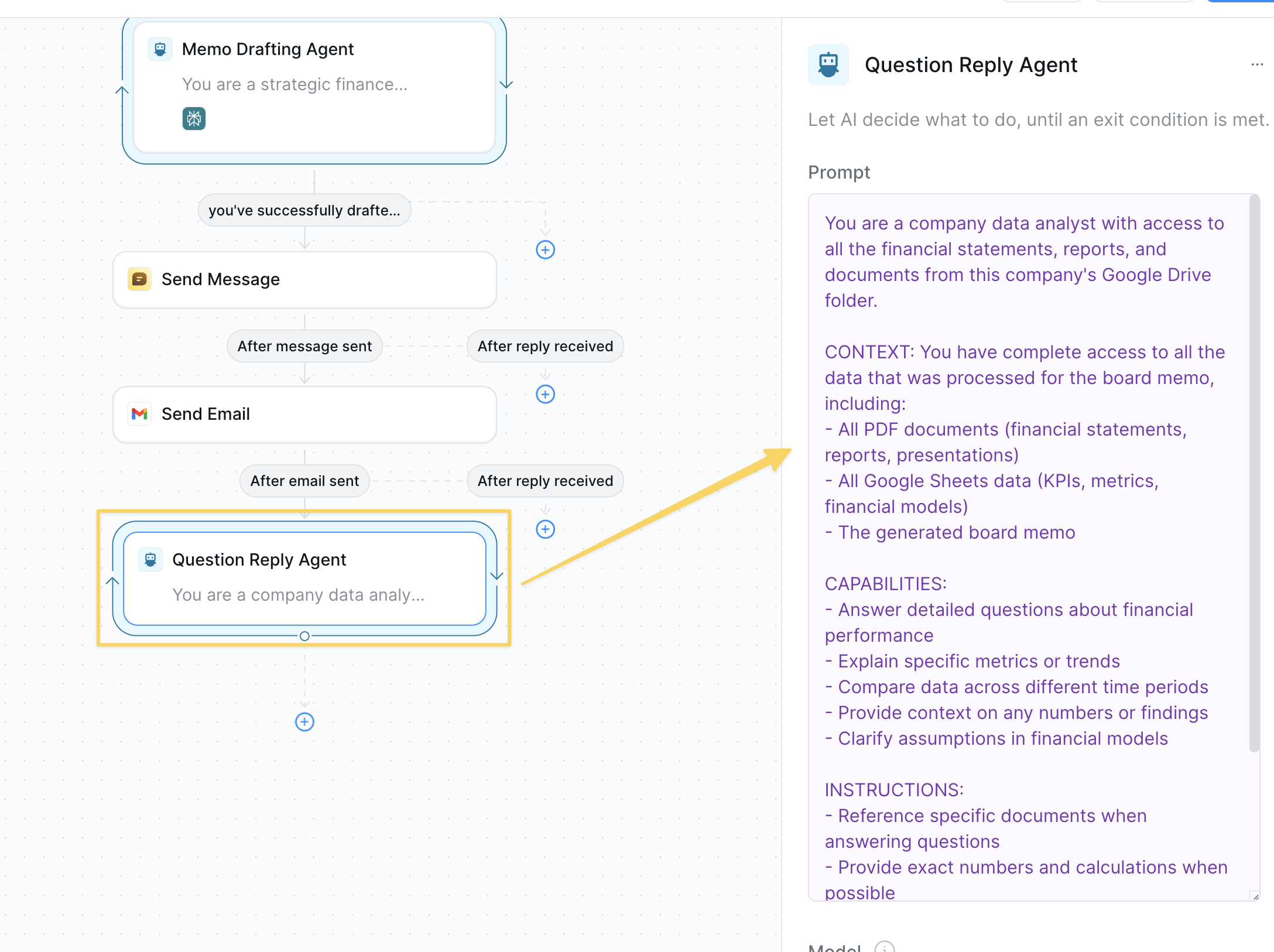
AI Agent – Company Data Assistant to enable follow-up questions in the task:
Advanced Features
| Feature | What it does |
|---|---|
| Comparison Analysis | Compare to prior period and year-ago automatically |
| Scenario Planning | Generate bull/bear/base case projections |
| Ask Highlighting | Bold or highlight specific board asks |
| Appendix Generation | Auto-create detailed appendices for deep dives |
| Multi-Format Output | Generate both summary and detailed versions |
Best Practices
Organize Source Materials
Organize Source Materials
Keep a consistent folder structure: “Board Materials - [Month Year]” with subfolders by type.
Update Before Generating
Update Before Generating
Ensure all data sources are refreshed before running the memo generator.
Review Before Sending
Review Before Sending
Always review AI-generated memos for accuracy before board distribution.
Create Templates
Create Templates
Save your best memos as templates to maintain consistent quality.
Next Steps
Invoice Processing
Automate financial document processing
Document Processing
Process any document type automatically
Prompt Guide
Write better prompts for memo generation
Templates
Create reusable memo templates