

Lindy supports connecting multiple Google and Outlook accounts. Once connected, Lindy manages email and meetings across all of them, not just your primary account.Documentation Index
Fetch the complete documentation index at: https://docs.lindy.ai/llms.txt
Use this file to discover all available pages before exploring further.
Adding an Account
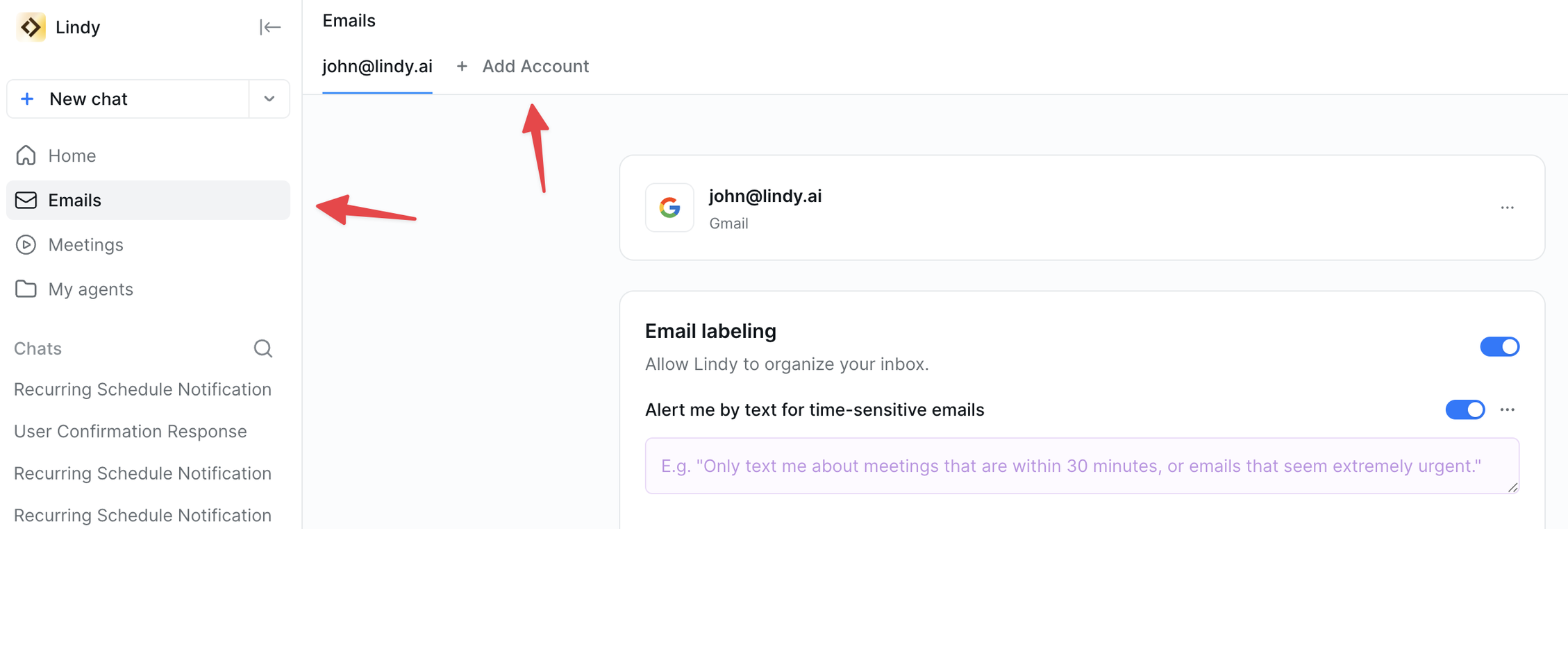
You can add additional accounts from two places in the sidebar:Emails
- Go to Emails in the left sidebar
- Click + Add Account
- Choose Google or Outlook
- Follow the prompts to sign in and grant Lindy access
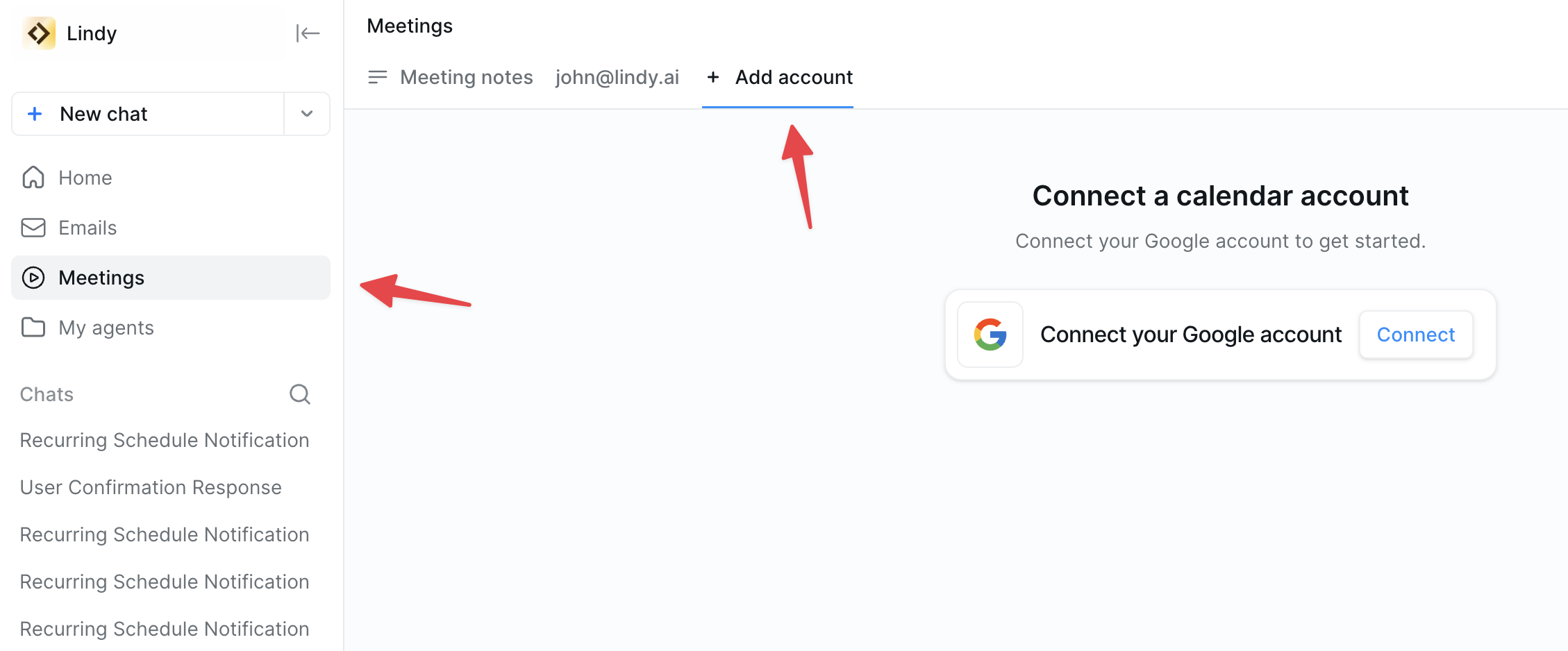
Meetings
- Go to Meetings in the left sidebar
- Click + Add Account
- Choose Google or Outlook
- Follow the prompts to sign in and grant Lindy access
You can connect both Google and Outlook accounts at the same time. Lindy works across both providers simultaneously.
What Gets Connected
When you add an account, Lindy gains access to the following for that account:| Feature | What Lindy can do |
|---|---|
| Read, label, triage, and draft replies across that inbox | |
| Calendar | See upcoming events and send meeting prep and notes |
| Contacts | Look up attendee context for meeting prep |
Removing an Account
To disconnect an account, go to Settings → Integrations, find the account you want to remove, and click Disconnect.Next Steps
Inbox Management
Set up email triage across all your connected inboxes
Meeting Assistant
Get meeting prep and notes from all your calendars