

Documentation Index
Fetch the complete documentation index at: https://docs.lindy.ai/llms.txt
Use this file to discover all available pages before exploring further.
Your Inbox, Handled
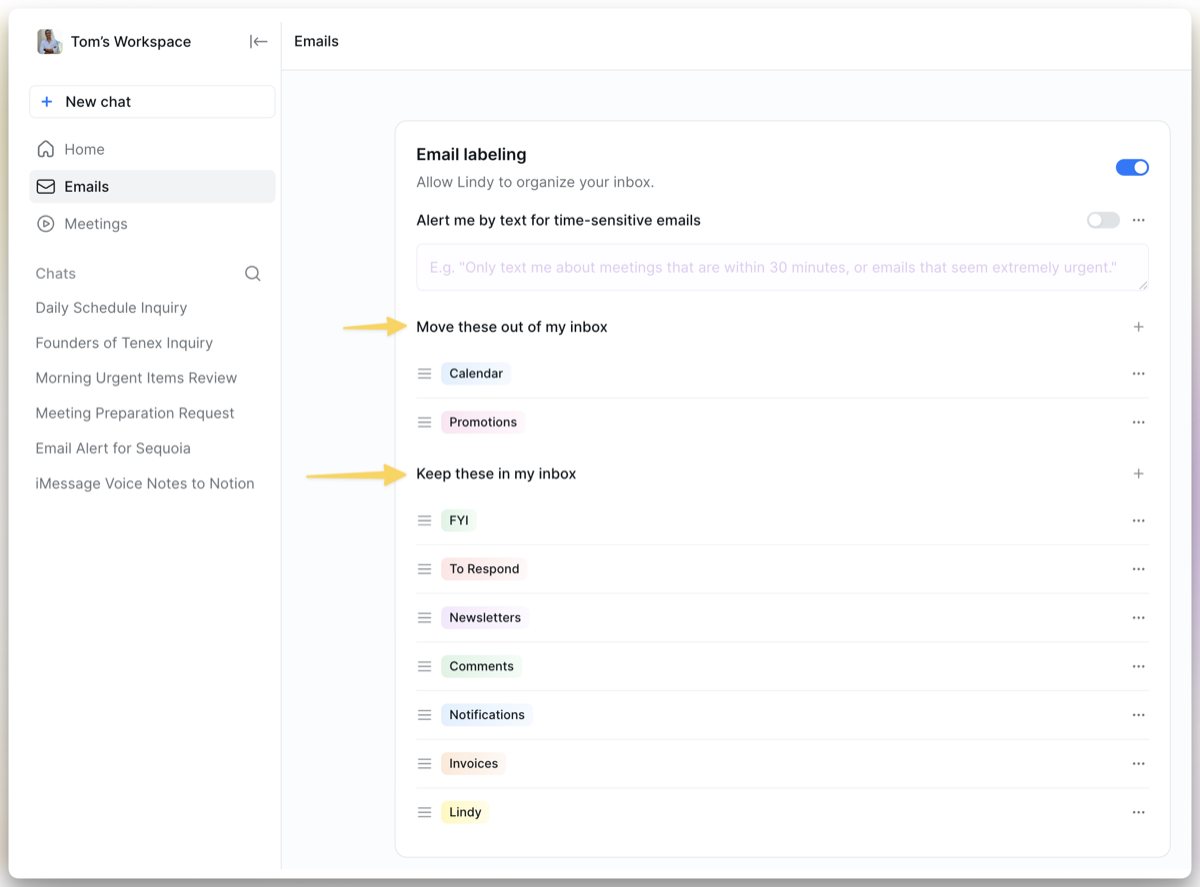
Email Labeling
Lindy reads every incoming email and assigns it to the right category. Email labeling is on by default. You can adjust it anytime in your settings at chat.lindy.ai.Categories
Lindy sorts your email into two groups: Move out of your inbox: these get archived and labeled so they’re out of sight:- Calendar invites and updates
- Promotions and marketing emails
| Label | What it catches |
|---|---|
| To Respond | Emails that need a reply from you |
| FYI | Informational, no action needed |
| Newsletters | Subscriptions and recurring content |
| Comments | Mentions, comments, and notifications from tools |
| Notifications | System alerts and automated messages |
| Invoices | Bills, receipts, and payment-related emails |
| Lindy | Messages from Lindy (meeting notes, briefings, etc.) |
Adding a Label
Open the Email Labeling section
Navigate to the Email Labeling section in your settings at chat.lindy.ai.
Click the + button
Find the group where you want your new label to live, either Keep in your inbox or Move out of inbox, and click the + button next to it.
Labels in Move out of inbox will archive matching emails automatically.
Urgent Email Alerts
Lindy can text you when something time-sensitive hits your inbox. Enable “Alert me by text for time-sensitive emails” in your settings and customize what counts as urgent.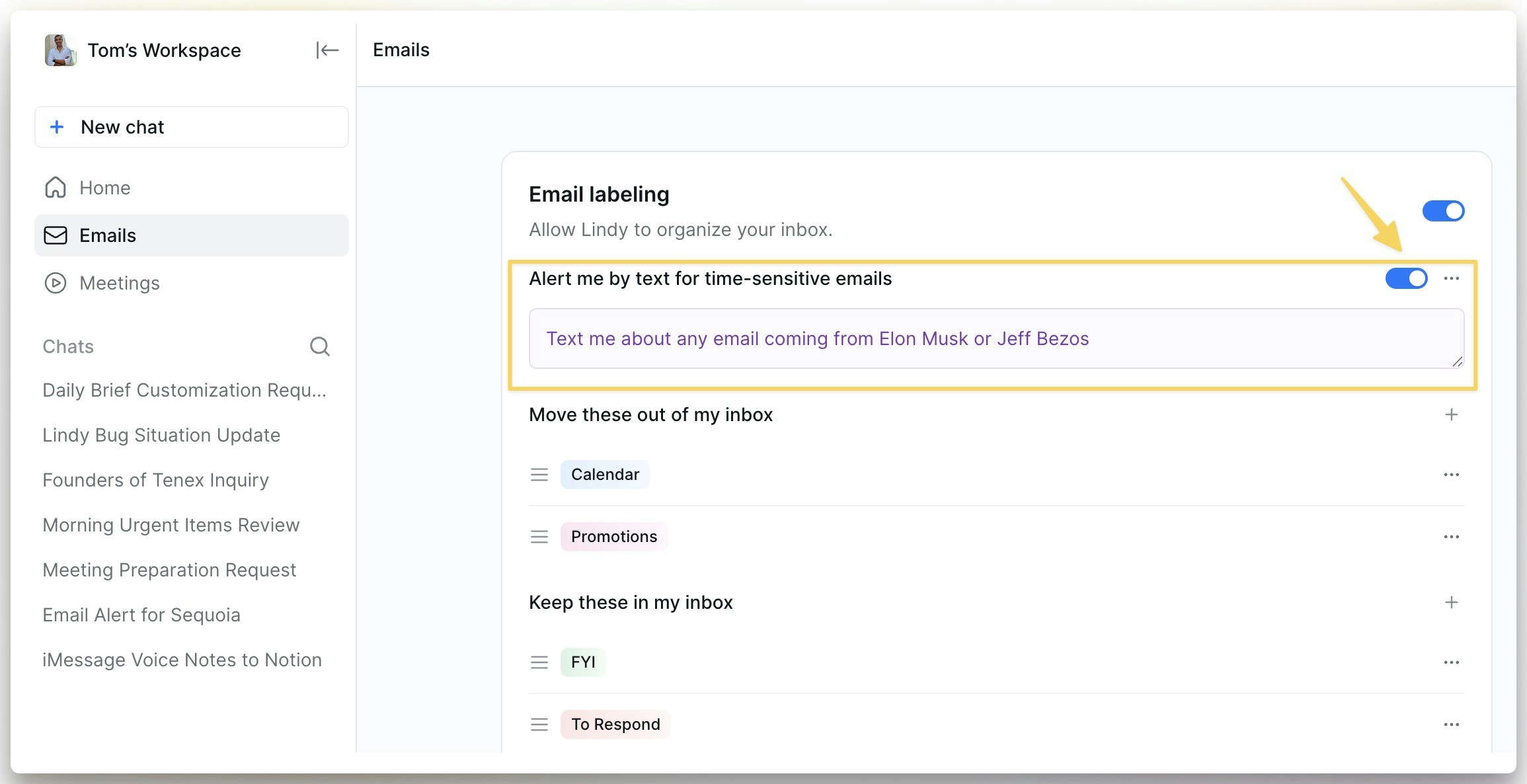
- Time-sensitive meetings: “Only text me about meetings that are within 30 minutes, or emails that seem extremely urgent”
- VIP senders: “Alert me when I get an email from [VIP client name]”
- Specific threads: “Text me if someone replies to the proposal thread”
Next Steps
Email Drafting
How Lindy drafts replies in your voice
iMessage & SMS
Get email alerts and respond via text